Knowledge Base Article
How to Plan and Track an Event's Financials
Event Financials puts what an event planned next to what really happened: the costs and income you expect, and the expenses and income actually recorded against it, down to the event's net income.
Open Event Financials
Open the event and click Event Financials in the Financials group of the workspace menu. Four cards sit across the top, each with its total and how many items make it up. Click a card to open its screen.
The Event Financials page has a short Show Me How To Use This Page video at the top right; click it to watch, and use its chapters to jump to the part you need.
Below them, the Financial Summary lines income up against expenses. Projected Income, Projected Expenses and Target Budget are planning figures shown for comparison only; Total Event Income, Total Event Expenses and Net Income use actual records and nothing else. If an auction is linked to the event, its revenue appears under Associated Auctions and counts toward income.
Under Sponsorships, Sponsorships Received (payments recorded) shows what sponsors have actually paid so far, from the Payments page on each sponsorship. The Sponsorships line and the totals still count each cash sponsorship at its committed amount, except one still In Discussions or Pending, which has its own gray line and is not counted.
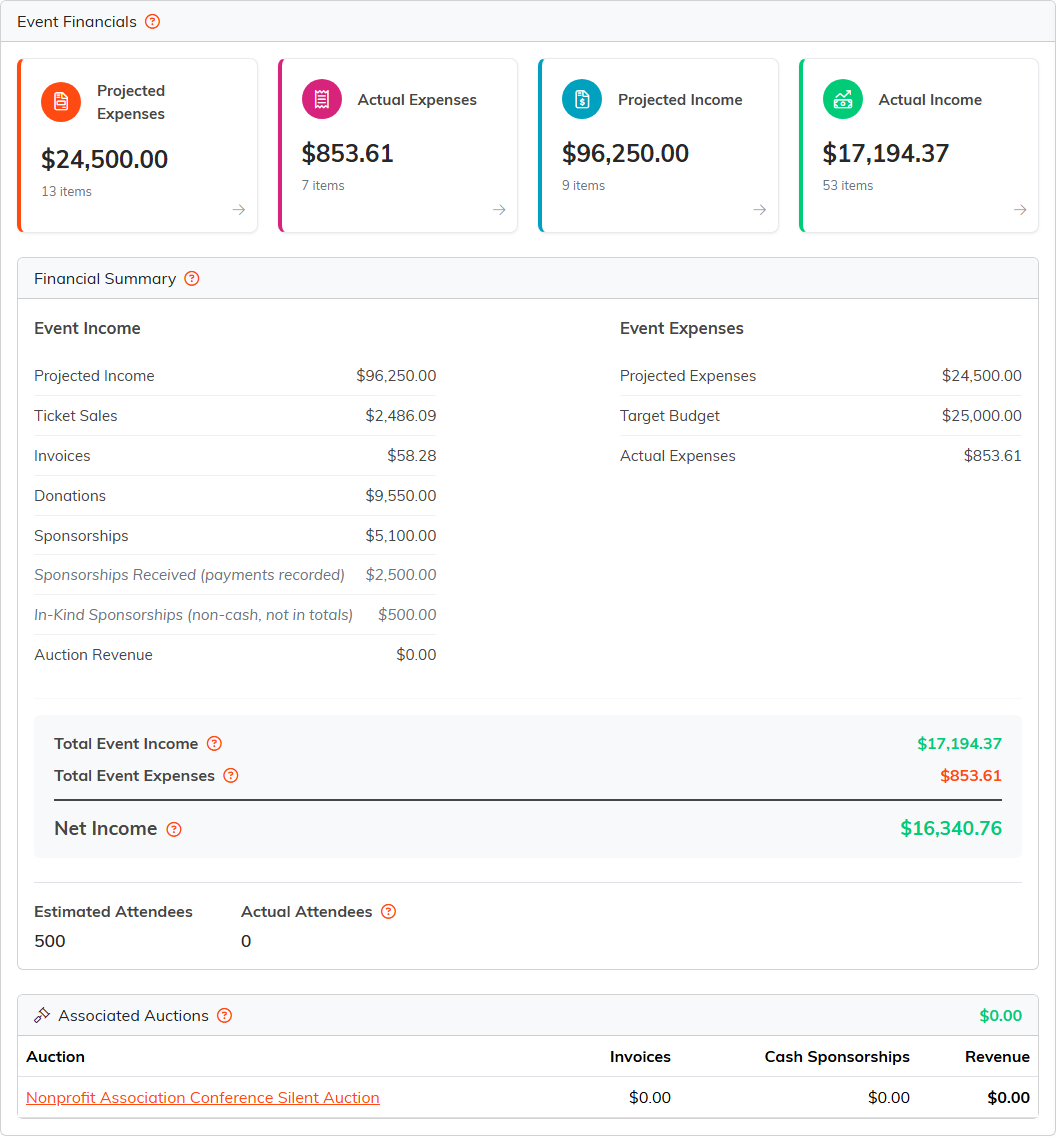
Nine months out: the plan, the money in so far, and the silent auction still to come.
Projected Expenses
What you expect to spend, one line per cost.
- Target Budget is what you are aiming to spend in total. Estimated To Attend is your best guess at headcount, and Actual Attendees is the number who really came, which you type in after the event. All three save as soon as you leave the box.
- Click Add New Projected Expense, enter the Cost, an Expense Name and a Description, and save.
- To change a line, edit it and click its orange save icon. The pink icon removes a line.
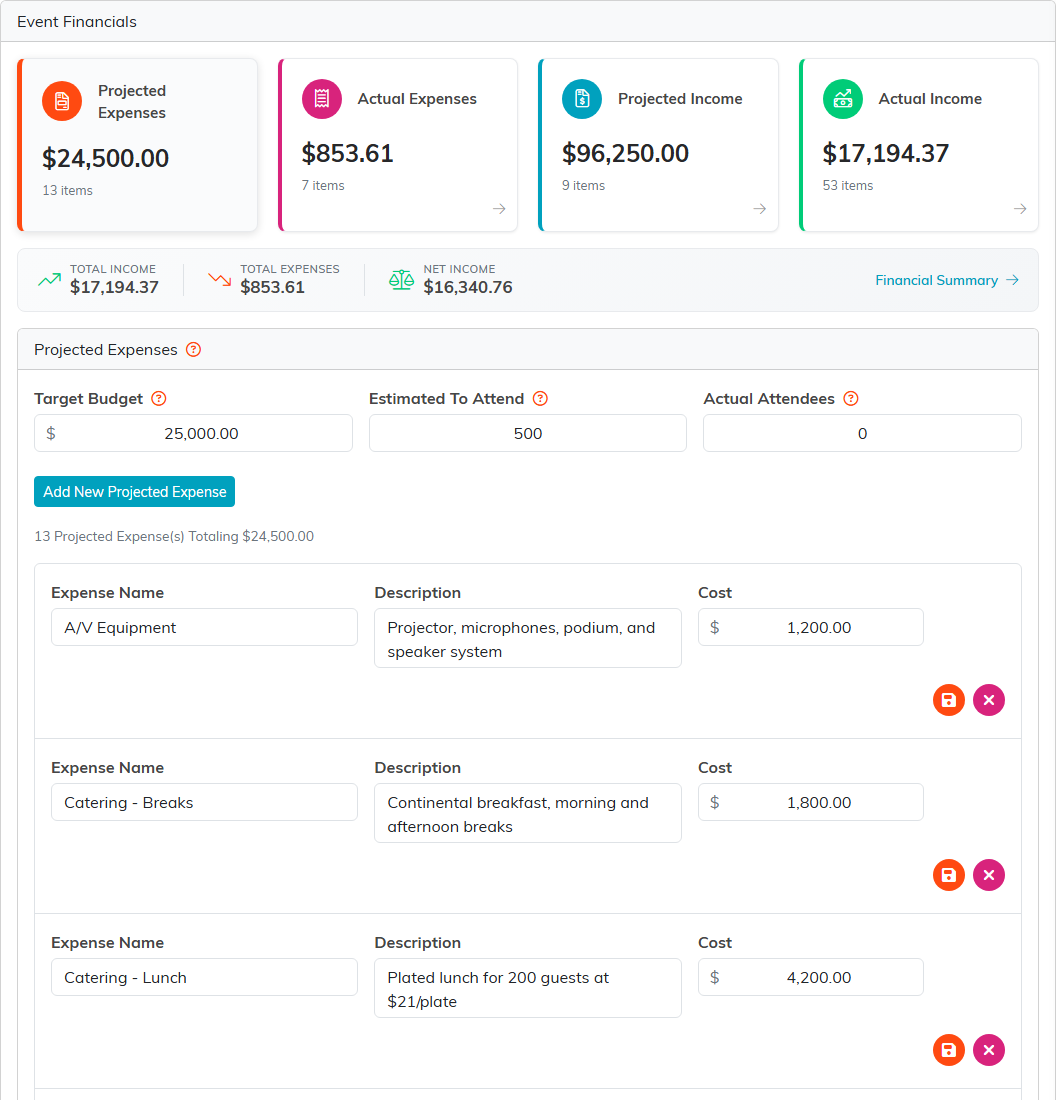
A $25,000 budget for 500 guests, line by line.
Actual Expenses
Every expense recorded against this event, with its date, payee, category, amount, payer, fund and account. Nothing is typed here: an expense joins this list when its Related Event is set to this event on the expense's Connections page. Click an ID to open the expense.
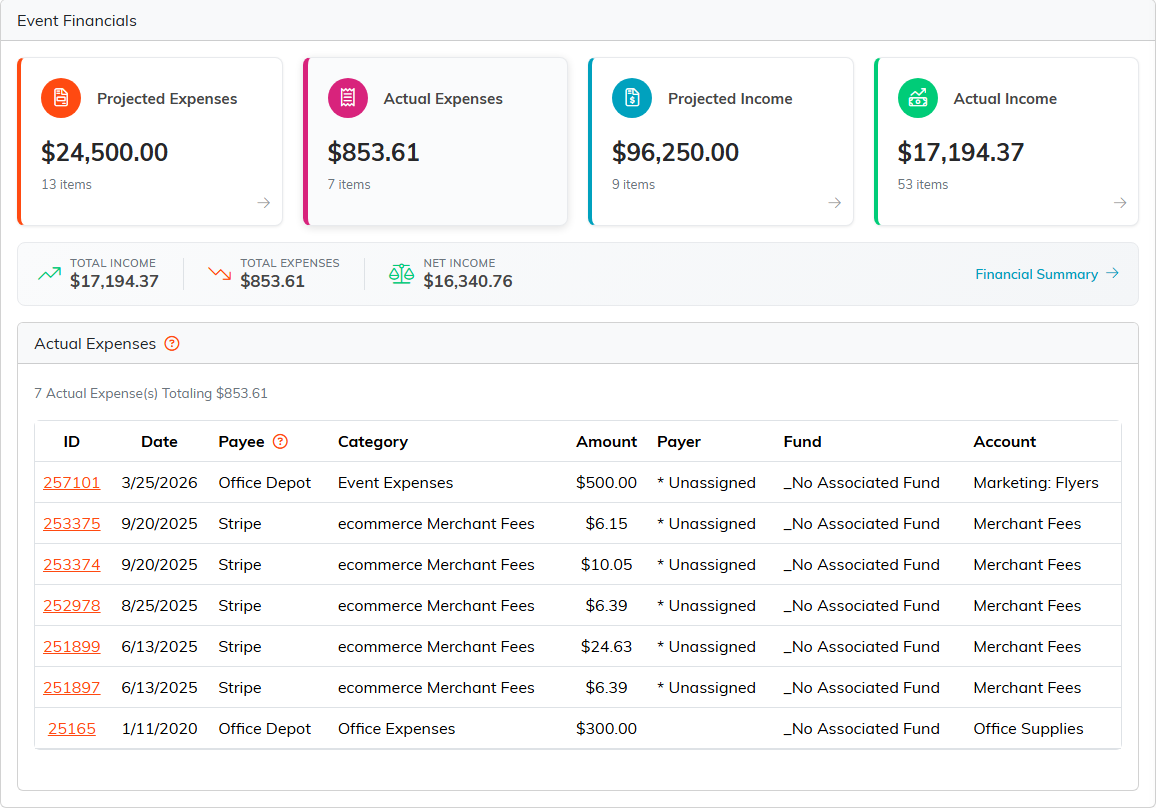
Expenses arrive here from the expense records themselves.
Projected Income
What you expect the event to bring in, one line per source. Click Add New Projected Income, enter the Amount, the Income Source and a Description, and save. Lines are changed and saved the same way as projected expenses.
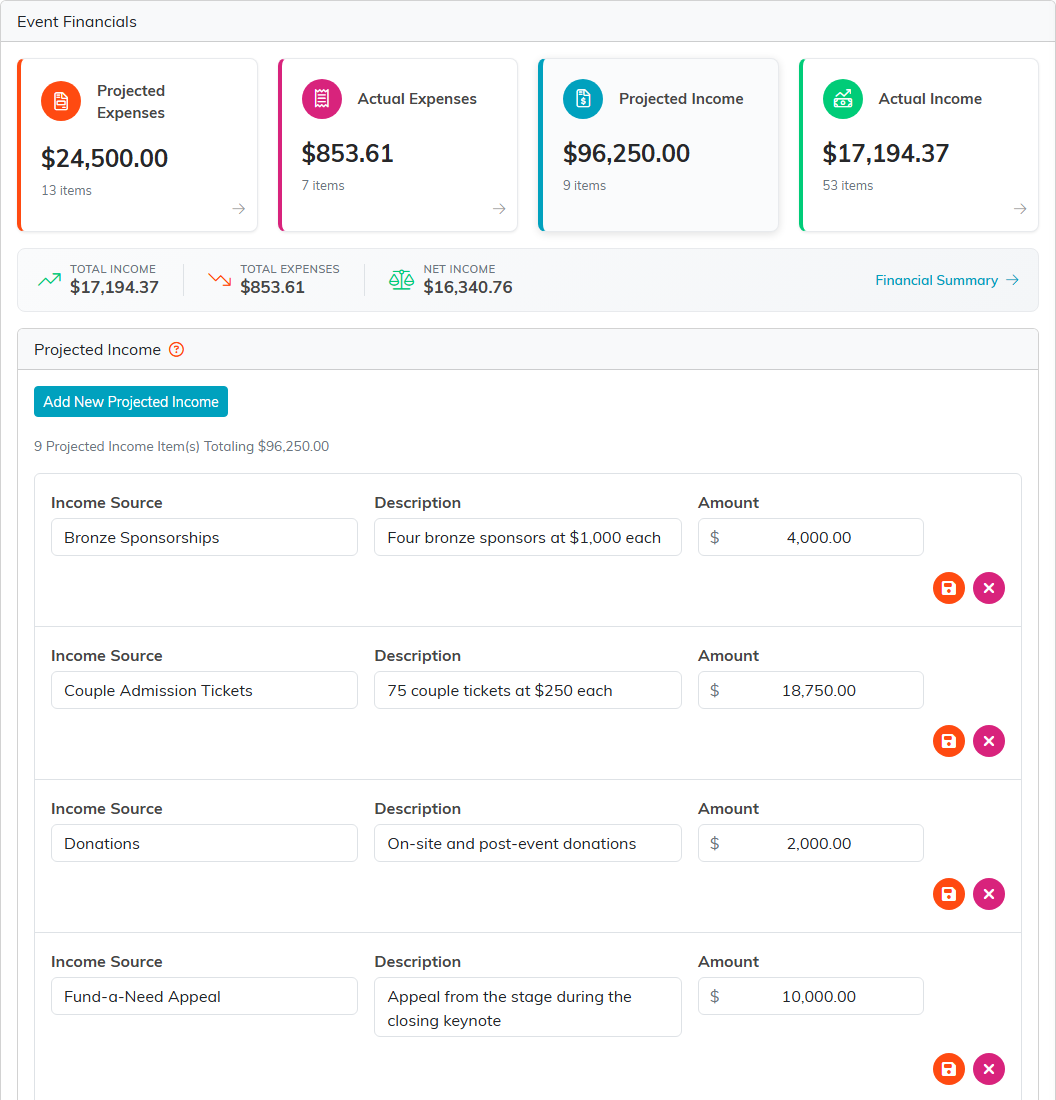
The plan: tickets, sponsors, the raffle and the appeal.
Actual Income
Everything the event has really brought in, gathered for you: ticket sales, sponsorships, invoices, donations and session booking payments tied to this event, each with its own subtotal. Click an ID to open the record.
- For tickets, the subtotal is what people actually paid. The Ticket Price column shows only the part of each ticket that is not tax-deductible.
- Cash sponsorships count, except one whose status is still In Discussions or Pending, which carries a gray badge. Those, and in-kind sponsorships, are shown beside the subtotal but are not counted as income.
- Invoices count at their invoiced total, except one that is Unpaid/Closed or Refunded/Closed: it stays listed with a gray CLOSED UNPAID or REFUNDED badge and is not counted. The tax-deductible slice of a ticket is not counted again as a donation.
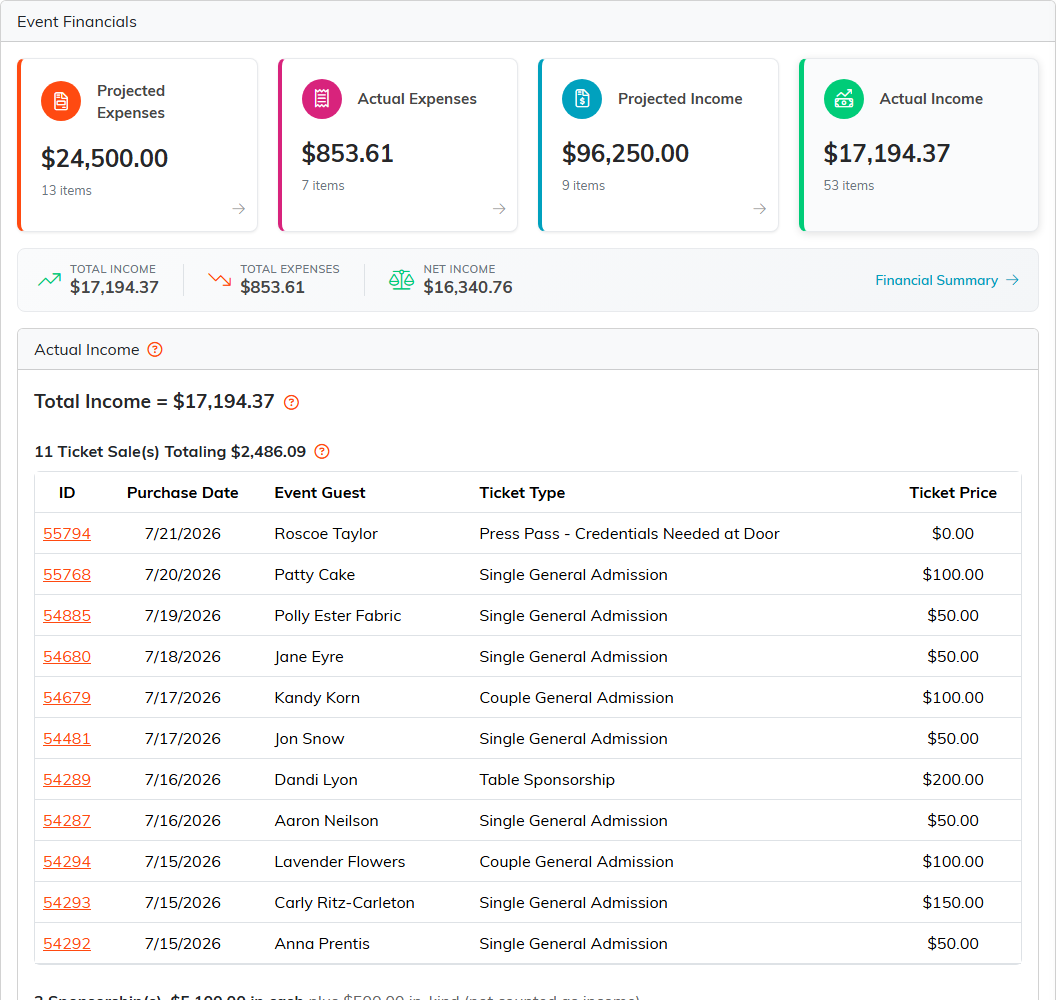
Every ticket and gift tied to the event, collected automatically.
If something you expect is missing from Actual Income, open that record and point its Connections at this event. For ticket sales and the sponsorships listed with them, see How to Track an Event's Ticket Sales.
