Knowledge Base Article
How to Manage Bidders on an Auction
The Bidders tab lists everyone registered to bid on an auction, with the bidder number each person holds up on the night and how they will settle what they win.
Open Bidders
Open the auction and click Bidders in the workspace menu.

Bidders is one of the tabs in the auction workspace menu.
What the list shows
Across the top you see how many bidders there are, the number bidder numbers start at, and whether this auction requires a card before a bidder number is issued. Both of those are set on Auction Details.
Each bidder shows their bidder number and name, their email, whether a card is on file, their Bidder ID, and when they registered. Search by name, email or bidder number to find one quickly.
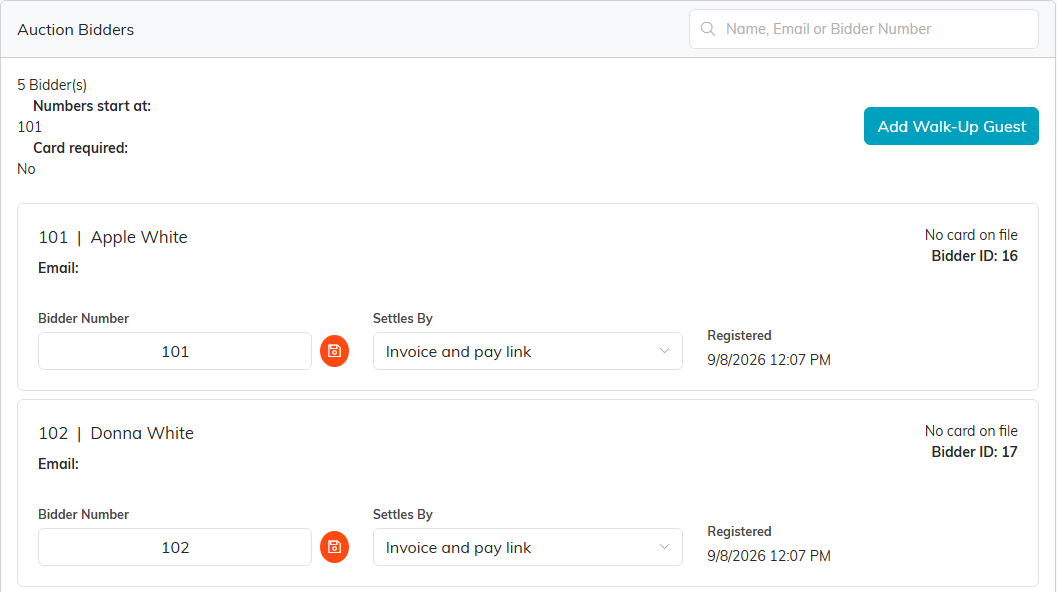
The bidders on an auction, each with a number and a way to settle.
Change a bidder number
Type the new number in Bidder Number and click the orange save icon beside it. A number can belong to only one bidder on an auction, and each person can register only once.
Choose how a bidder settles
Settles By decides what happens when you run the auction's transactions:
- Card on file: the card the bidder saved when they registered is charged for everything they won.
- Invoice and pay link: the bidder is emailed a link to pay their invoice instead.
Add a walk-up guest
When the auction does not require a card, you can add someone who arrives on the night without registering online.
- Click Add Walk-Up Guest.
- In Person, search for the guest, or add them as a new constituent with the plus icon.
- Click Add Guest. They get the next free bidder number.
A walk-up guest has no card on file, so they are set to settle by invoice and are emailed a link to pay after Run Transactions. If they later save a card on the auction's Register to Bid page, they switch to the card on file and are charged to it at Run Transactions or the auction close instead. When the auction does require a card, the button is replaced by a note: every guest registers themselves, and you turn that off on Auction Details to add walk-ups here.
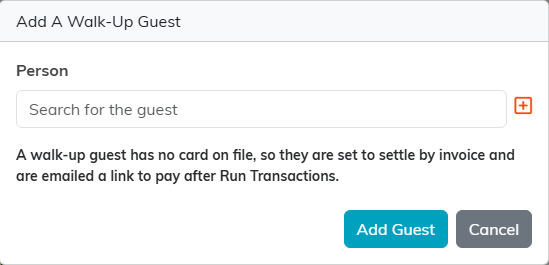
A walk-up guest settles by invoice and pays through the emailed link, unless they save a card on Register to Bid first.
