Knowledge Base Article
How To Decide An Employment Application
The Final Determination tab is where an employment application ends. You hire the applicant or decline them, and Argenta does the paperwork that goes with the decision. Staff managers and administrators can open it; someone with view-only access sees the tab but cannot decide.
Open The Tab
- From the main menu, select Staff & HR > Employment Applications.
- Open the application.
- Click the Final Determination tab.
Before You Decide
Three tiles sum up what is on file: whether the Application was signed, how many References there are and where they stand, and the Background Checks, with the date the last one was completed once one has been. Click a tile to open that tab and look closer.

Your Decision
Pick Hire or Decline. Nothing is saved until you complete the decision at the bottom of the page, so you can switch between the two and read what each one will do.

Hiring
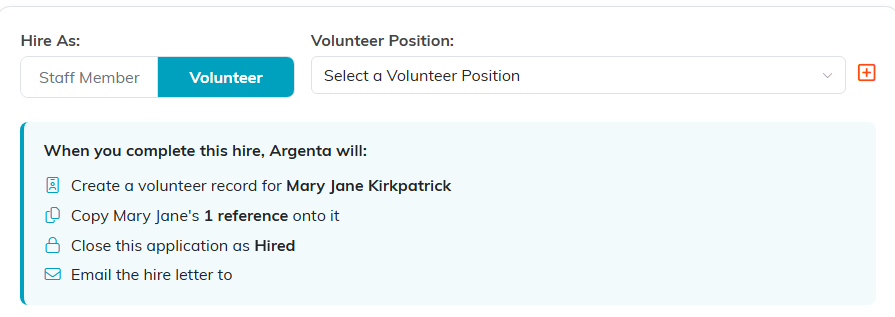
If your organization uses volunteers, Hire As lets you choose Staff Member or Volunteer. Then pick the Staff Position or Volunteer Position the person is filling. The orange add icon beside the list creates a new staff position without leaving the page; for a volunteer position it opens Volunteer Positions in a new tab.
The box underneath lists exactly what completing the hire will do: create the staff member or volunteer record (or update the one already there), copy the application's references and background checks onto it, fill the position you picked, close the application as Hired, and email the hire letter.
The Letter
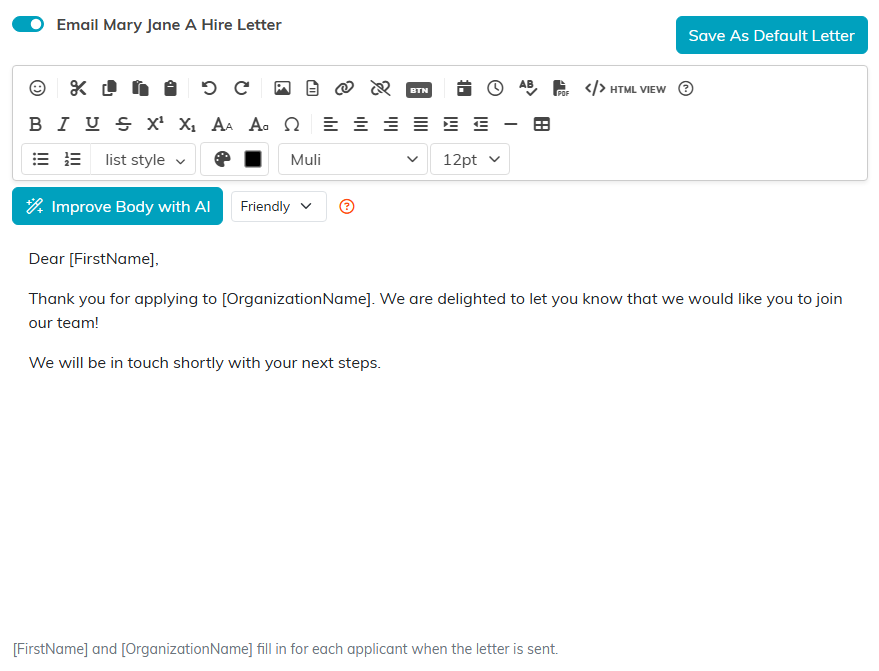
The switch to email a hire letter starts on whenever the applicant has an email address on file. The letter opens with a starter you can edit, and [FirstName] and [OrganizationName] fill in for each applicant when it is sent. Save As Default Letter keeps your wording as your organization's letter for next time. Turn the switch off to complete the decision without sending anything. If there is no email address on file, no letter can be sent and the page says so.
Declining
Declining closes the application as Not Hired and, with its switch on, emails the decline letter. The decline letter works the same way as the hire letter, with its own starter and its own default.

Complete The Decision
- Click Complete Hire or Complete Decline at the bottom of the page.
- Argenta confirms the decision and, if a letter went out, the address it was queued to.
An application is decided once. Pressing Complete again on one that has already been decided saves nothing and tells you so. The application's Final Outcome is set for you, so there is no need to change it by hand.
After The Decision
The tab now shows the outcome: who was hired, as what, and into which position, or that the application was declined, with the date, who decided it and where the letter went. For a hire, Open Staff Member Record or Open Volunteer Record takes you straight to the new record. The tiles stay underneath, under What Was On File.

