Knowledge Base Article
Incident Reports
Incident Reports record something that happened involving one of your people, what was decided about it, and any restriction that follows. The account, the outcome and the written notice stay together on one record, so whoever opens it next sees the history rather than a rumour.
Who can use it
Recording and reading incidents needs the Incident Manager permission, or Master Admin. Without it the section is not there. Anyone who can open a person's record still sees whether that person is restricted right now, but not the incident behind it, which is the point: the people who need to act on a restriction are usually not the people who should read the account.
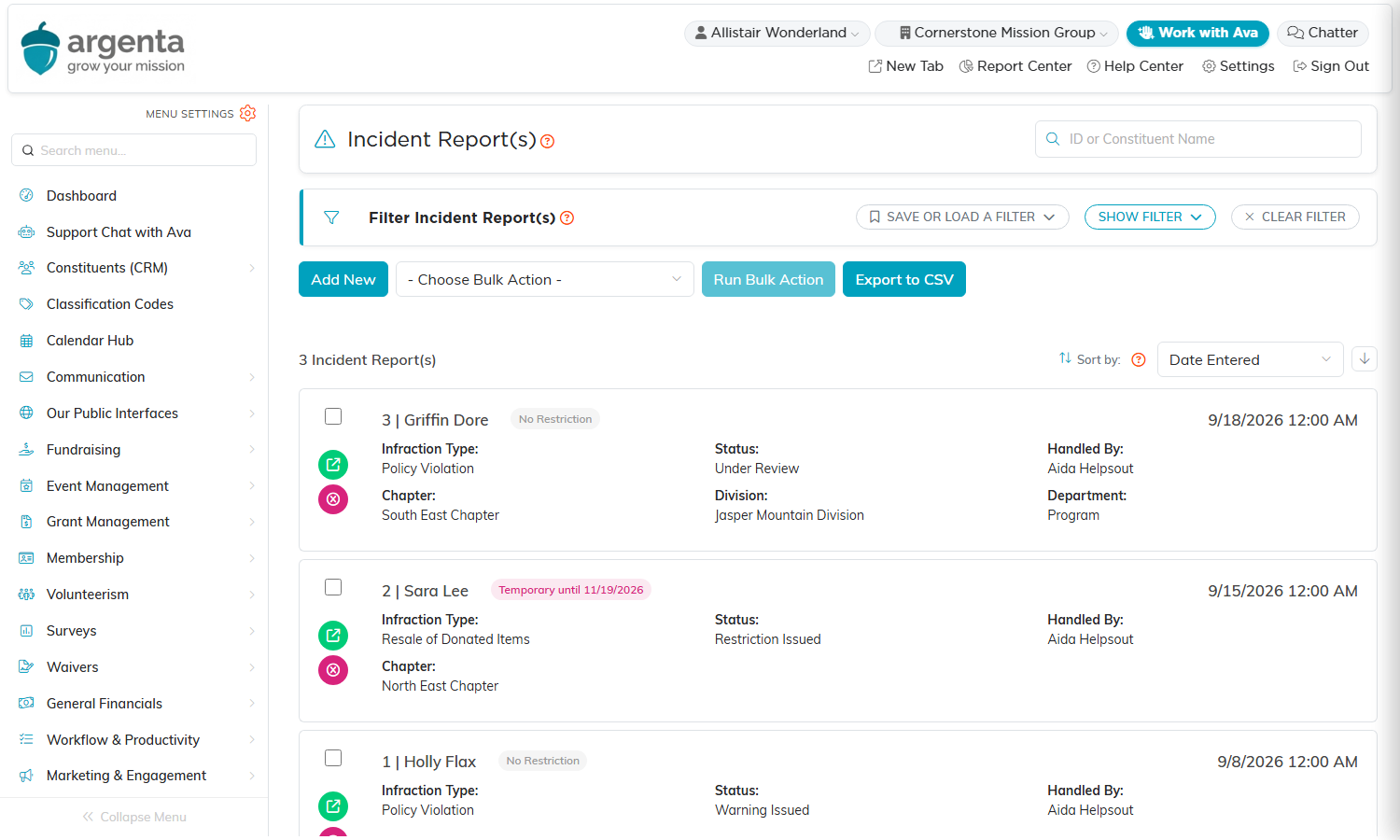
The Incident Reports list. The pill on the right of each name is the restriction.
Find the list
Go to Constituents (CRM) > Incident Reports. Open Show Filter to narrow by constituent, who handled it, restriction, infraction type, status, an incident date range, or your chapter, division and department (and district and precinct on a political team).
Record an incident
- Click Add New.
- Fill in Constituent, Incident Date and Time and Handled By (Team Member). The first two are required.
- Choose an Infraction Type and a Status.
- Write the account in What Occurred.
- Set the Restriction, then save.
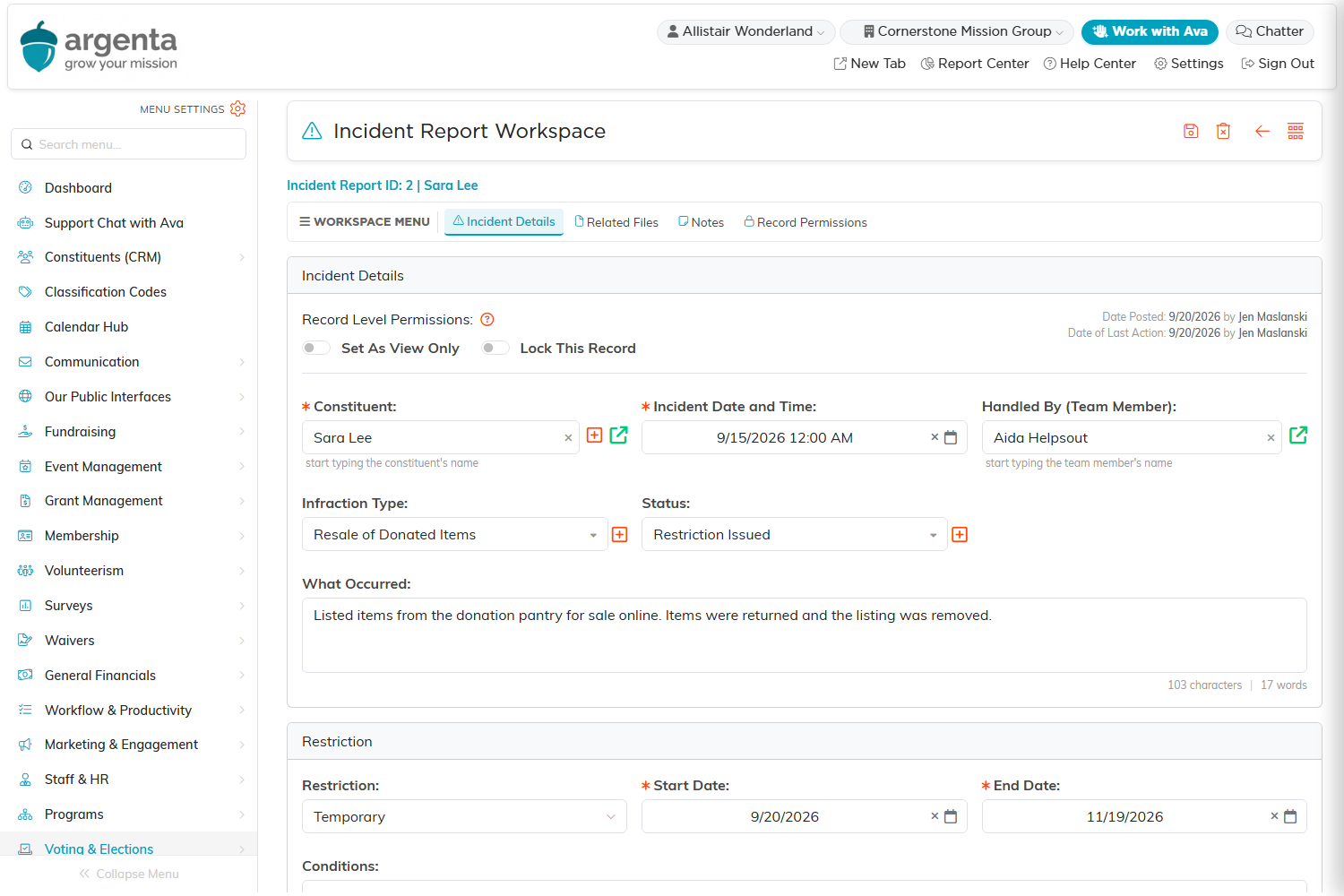
The Incident Report Workspace. The Restriction section sits below the account.
Infraction types and statuses
Argenta starts you with Resale of Donated Items, Policy Violation and Threatening or Abusive Behavior as infraction types, and Under Review, Warning Issued and Restriction Issued as statuses. Both are classification codes, so the orange + beside either list adds one of your own wording. A code your incident reports are still using cannot be removed from your list: Argenta names the records holding it, so you move those onto a different option first and then remove the code.
Restrictions
Restriction is one of three things:
- None for an incident you are recording without restricting anybody, which is what a warning usually looks like.
- Temporary, which asks for a Start Date and an End Date. Both are required, because a temporary restriction with no end is a permanent one nobody meant to make.
- Permanent.
Use Conditions to say what the restriction actually means in practice. "May not collect from the pantry directly" tells a volunteer coordinator what to do; "restricted" does not.
A temporary restriction stops applying on its own once the end date passes. You do not have to go back and clear it.
Seeing it from the person's record
While a restriction applies, a pink Restricted pill, or Restricted until the end date, shows beside the person's role badges at the top of Constituent Details and on their constituent card, the summary at the top of a role record such as a Donor, Member or Volunteer. The Constituent List does not show it. Anyone who can open the record sees it. The pill does not link to the incident or say what happened.
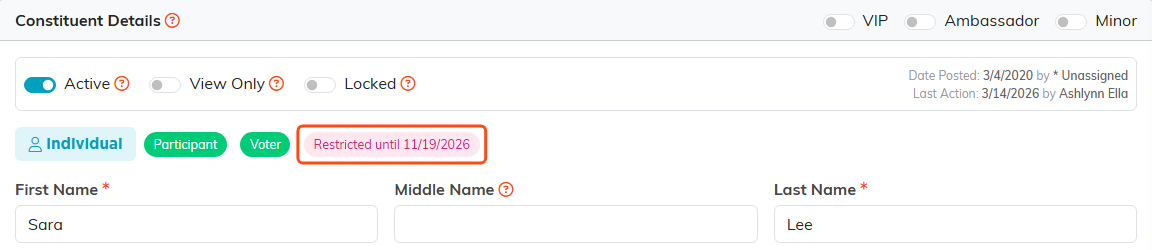
The Restricted pill at the top of Constituent Details.
A Participant or Recipient record has its own Incident Reports tab showing that person's history, and you can add one from there.
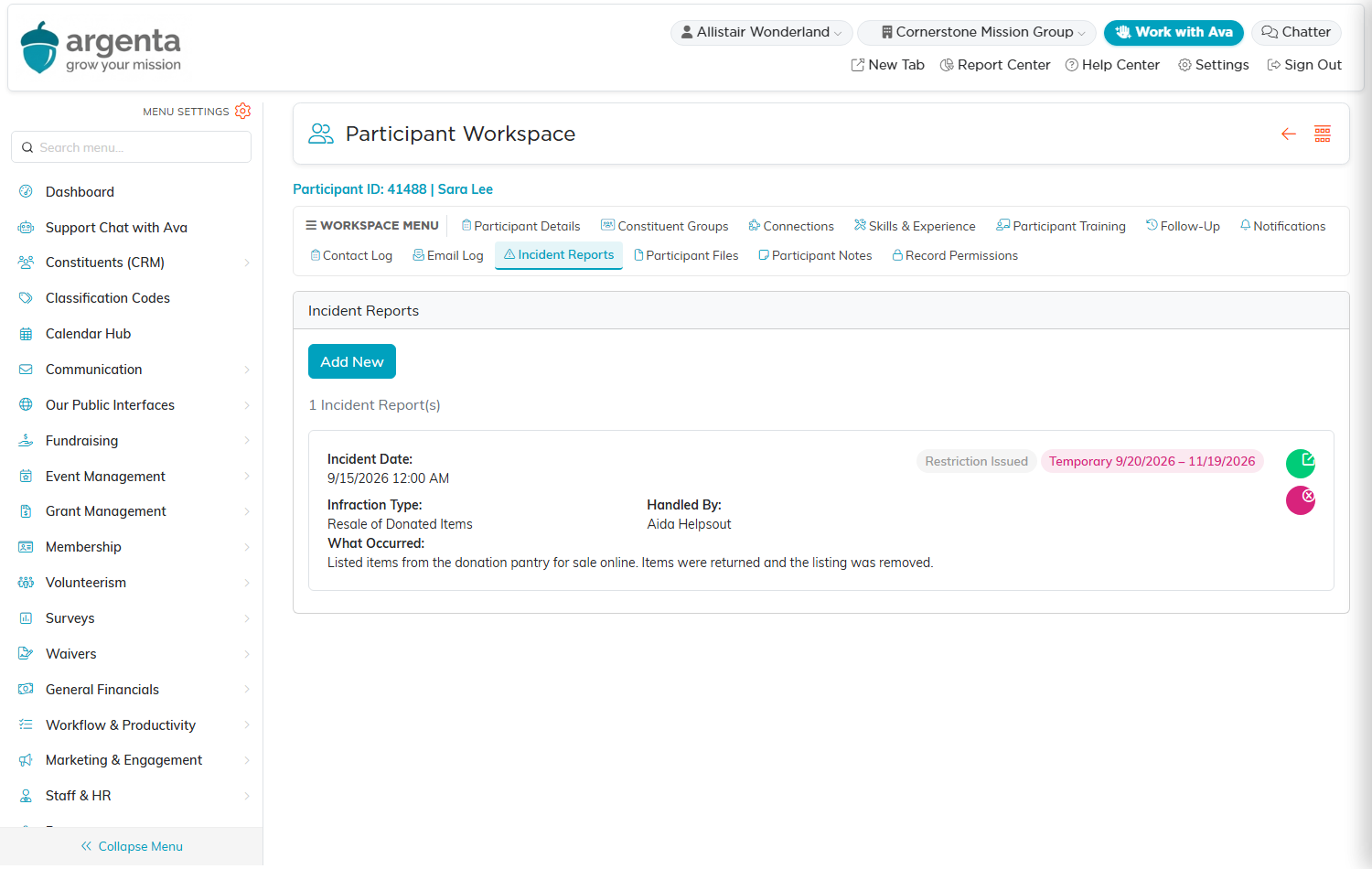
The same incident seen from the person's own record.
The written notice
Attach the notice you sent on the Related Files tab of the incident, so the record and the letter cannot drift apart. Notes is for anything that comes afterwards.
Exporting
Export to CSV gives you the incidents the list is showing you. If a record is locked to you, it shows on the list with its padlock, and in the file it keeps only its Incident Report ID, which the added Locked Record ID column repeats; What Occurred and every other detail stay blank.
