Knowledge Base Article
How Many Emails Your Plan Includes, and What Additional Emails Cost
Every Argenta plan includes a set number of email sends each month. You are not capped at that number, and this article covers what the additional emails cost and how to arrange them.
What your plan includes
- Start-Up: 50 email sends per month
- Small Team: 500 email sends per month
- Growing Team: 1,500 email sends per month
- Contract Pricing: whatever your agreement says, because these plans are built around one organization
A send is one email to one person. A newsletter that goes out to 300 people uses 300 sends, and a receipt, a thank-you and a welcome message to the same donor use three.
What additional emails cost
Additional email sends are $50 for every extra 5,000 emails. That is charged on top of your plan, and nothing else about your plan changes. Your users, your records and your features stay exactly as they are.
The 5,000 come as a block rather than one at a time. If you are on Small Team and a busy month takes you to 3,000 sends, the 2,500 above your included 500 sit inside a single $50 block.
Going over your email limit
Going past the sends included with your plan is what people usually mean by an email overage. Talk to us before a big send rather than after it, and we will have the extra emails on your subscription in time for it.
If you find you are over every month, it is worth asking about the next plan up instead. Moving from Start-Up to Small Team takes you from 50 sends to 500, and it raises your user and record allowances at the same time.
How to ask for more sends
- Click Settings (the gear icon in the top right of Argenta), then choose Subscription. The gear shows only to a Master Admin or a Subscription Admin.
- Click Submit A Support Request at the bottom of the Subscription Overview card.
- Tell us roughly how many emails you expect to send in a month, and what you are sending.
You can also write to [email protected]. If you are not an Argenta customer yet, use the contact form on our website and ask for pricing on additional emails.
Where to check which plan you are on
The Subscription Overview card under Settings, then Subscription, names your subscription type and your monthly fee. It also shows Number of Emails (Current Month), which is how many sends your team has used so far this calendar month, directly under Number of Records. The included sends for your type are listed at the top of this article, so the two together tell you where you stand.
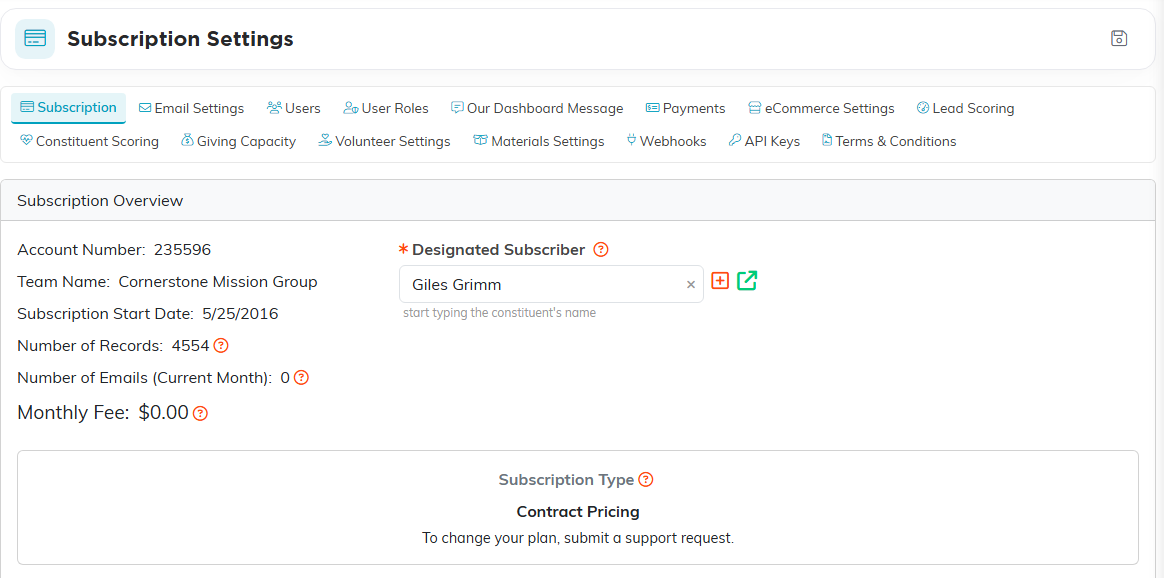
Your subscription type sits on the Subscription Overview card.
