Knowledge Base Article
Importing a Contact List from Another Email Tool and Putting It on a Mail Room List
Moving to Argenta from another email tool such as Constant Contact is two jobs, not one. First you bring the people in, then you put them on a mail room list so you can send to them. The import on its own does not create a list, which is the step most people are missing when they say the contacts arrived but there is nothing to send to.
Before you start
Export your contacts from your old tool as a CSV. Whatever it gives you is fine to start from, because you map the columns to Argenta fields later. The one column worth checking before you upload is the one recording who agreed to be emailed, because that is what decides whether a person can go on a list at all.
Part one: bring the people in
- Open Constituents (CRM) > Constituent List.
- Click Import above the grid. If you cannot see the button, your login is not an administrator or a subscription admin, and someone who is will need to run the import for you.
- Download the import template and match your export to it. You do not need every column, only the ones you have.
- Include a column called IsSolicitOk for marketing consent: No against anyone who unsubscribed from, or never opted in to, your newsletters in the old tool. They can still join a list and still get receipts, but every marketing send skips them. Use IsEmailOk = No only for people who must get no email from you at all, not even receipts. Both columns accept Yes and No, True and False, Y and N, or 1 and 0, and a column you leave out altogether brings everyone in as Yes.
- Upload the file, map your columns to Argenta fields, and preview before you import.

Every import walks the same five steps, so you can see your data before it lands.
See How to Import Constituents from Excel for the import itself in more detail.
Part two: put them on a mail room list
- Back on the Constituent List, find the people you just imported. Filtering on the import date or on a classification code you gave them is the easiest way to get just that group.
- Tick the records you want. For a large group, open Bulk Actions and choose Select All Records That Meet The Current Filter Criteria, which takes everything your filter found rather than only the page in front of you. Select Records Only on This Page is there for when you want just the page.
- In Bulk Actions, scroll to -- Mail Room Management --. These actions only appear for users with the Mail Room Manager permission, and for Master Admins. There are two choices:
- Create A New Mailroom List With Selected Records builds a brand new list from the people you ticked.
- Add Selected Records To An Existing Mailroom List puts them onto a list you already have.
- Choose Email as the list type, name the list if it is a new one, and confirm. Argenta tells you how many people actually joined.
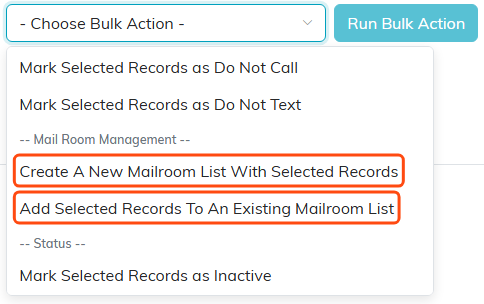
The two Mail Room Management choices sit partway down the bulk action list.
Why the number that joined can be smaller than the number you ticked
This is the part that looks like something went wrong, and usually nothing did. To go on an email mail room list a person needs all three of these:
- An email address in Email 1. A blank one cannot be emailed, so it is left off.
- IsEmailOk set to Yes. Somebody imported as No is a perfectly good record and will never join an email list, on purpose.
- An active constituent record. Inactive records are left off.
So if you ticked 500 people and 430 joined, the other 70 are missing one of those three, or were already on the list. Open a few of them on the Constituent List and you will see which. Fix the record and add them again, and they will go on.
To check the opt-in state for a lot of people at once rather than one at a time, open Communication > Mail Room, click Subscriptions, and choose Export The List from Bulk Actions. The file it gives you carries an Email Ok column for every person on it.
The mail room list Argenta builds this way is a hand-built list. It holds the people you put on it and does not change on its own. If you would rather the list keep itself up to date, a Smart List does that from a rule instead.
See also Mailing Lists: The Two Kinds, and How They Relate to Topics and How to Import Constituents from Excel.
