Knowledge Base Article
Connecting Your Bank with the Bank Feed
The Bank Feed connects an account in your chart of accounts to your real bank, so Argenta pulls in the transactions your bank has posted. You reconcile against real bank lines instead of working from a paper statement. A linked account also carries its balance onto the reconciliation screen, filled in for you and stamped with the time your bank worked the figure out. (This is a financial page, so you need Finance Manager or Master Admin.)
The Stripe Bank Feed charges an additional $10 per month. It is opt-in, and switching it off stops the charge. Argenta reads your transactions and never moves money, so nothing here changes your books on its own.
Turn on the Bank Feed
- Go to General Financials > Chart of Accounts and open the bank account you want to connect.
- Open the account's Bank Feed tab, then find the Bank Feed panel on it. Any account carrying a register has that tab.
- Click Turn On The Bank Feed, then confirm.
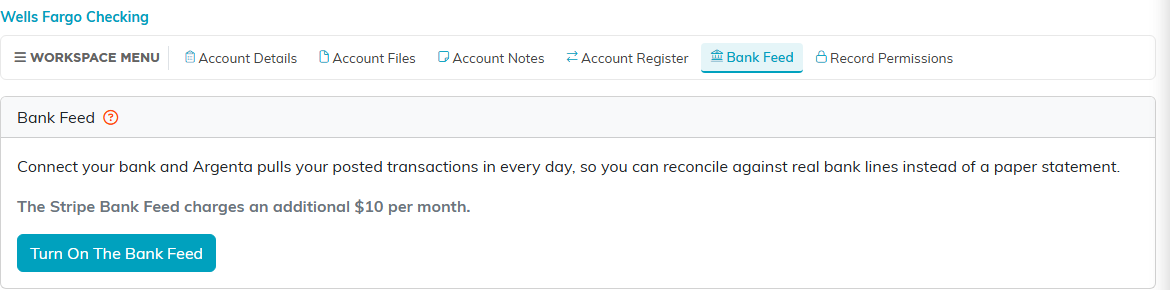
Steps 2 and 3. The Bank Feed tab, and the panel on it before the feed is switched on.
The Bank Feed is switched on for your whole team, but a bank is linked per account, so each account you reconcile is connected on its own page. The panel appears only on an account that carries a register, because a register is what a bank statement is reconciled against.
There is a shortcut from the chart of accounts as well. On any account with a register, the purple bank icon in that row opens the account's Bank Feed tab directly.
Link a bank account
- With the Bank Feed switched on, click Link A Bank Account in the panel.
- Sign in to your bank in the window that opens, and choose the account you want to share.
- When the window closes, the bank is listed in the panel. Closing the window without finishing changes nothing.
- If your bank hands back more than one account, Argenta saves nothing yet and asks which one belongs to the account you are linking. One account in your books takes one bank account, so pick the single one these books are kept for and link any others from their own pages.
A newly linked bank brings in transactions from the day you link it, and nothing from before that. A line posted earlier the same day still comes in, so you do not lose the morning you connected. This is deliberate: months you have already reconciled are finished business, and pulling them back in would offer you old lines to tick off a second time.
What the connection status tells you
- Connected – the feed is running. The panel also shows the date it last updated.
- Not Feeding Yet – the bank is linked, but transactions are not switched on yet.
- Reconnect Needed – your bank ended the connection. The feed stays stopped until you link it again. If your bank restores the connection itself, Argenta picks that up and shows the link as connected again, with nothing for you to do.
Argenta checks on a quiet connection by itself, so a feed that stops is flagged on the account rather than going unnoticed.
Where your bank's transactions appear
Open the account register and click Reconcile Account. Where a bank is connected, the screen opens on its Match Your Bank tab, which carries a count of the lines still waiting on you, and your bank's lines sit under the From Your Bank heading on that tab. The second tab, Balance And Finish, is where you enter your statement balance and close the period. Its two buttons, Mark as Cleared and Close Out This Time Period, sit at the right-hand end of the tab row, away from the transaction list. A live bank connection is enough to put those two tabs there, even before your bank has reported a single line, so an account with no bank connected looks exactly as it did before. When the screen loads, Argenta ticks off any settled bank line that has exactly one unmatched entry in your books on the same day for the same amount. What is left standing is money your books have not got yet, a line that more than one entry could be, or one whose entry carries a different date, which you match by hand. Each line shows its description, the date, the bank and the last four digits of the account, and the amount. Money coming in is shown as a positive figure and money going out as a negative one, exactly as the bank reported it.
A line your bank has not settled yet shows its status beside it. It cannot be matched while it is pending, because the amount can still change, but it can be matched once the bank posts it.
An unmatched line can also show Already Booked. That means Argenta has found a platform fee it has already booked and deposited for the same date and the same amount, so the money is accounted for even though nothing is tied to this line yet. It is not the same as Matched, which means a particular entry in your books has been tied to that line. Neither one writes anything to your ledger.
Tick a bank line off against your books
Ticking a line off records that this bank line is that entry in your books. It does not write anything into your ledger: no deposit, no journal entry, no change to a balance. Your books already have the entry, which is the whole point of the exercise.
Most lines need nothing from you. When a bank line has exactly one entry on that account for the same day and the same amount, Argenta ties the two together as the screen loads. Where more than one entry could be the match it leaves the line for you, because picking the wrong one reconciles the wrong entry and looks perfectly normal afterwards.
- Find a line in From Your Bank that is not already ticked off, and click Match.
- Argenta lists the entries on that account that no bank line has claimed, as long as the entry is dated on or after the day you FIRST connected a bank to this account, or was entered in Argenta on or after that day. So a payment dated the month before you connected, but recorded afterwards, is still offered, and it does not have to fall inside the period you are reconciling. An entry both dated and entered before that day is not offered, because it belongs to months you reconciled before the feed existed. Reconnecting a bank later, or linking a second one to the same account, does not move that line forward. Tick the one this bank line is.
- Watch the running total. It shows what you have ticked against the line's amount, and how much is still to go.
- Once the ticked total matches the bank line exactly, click Tick It Off.
While the ticked entries add up to something other than the bank line, the button stays unavailable. Money leaving the account counts the same as money coming in, so a payment and a deposit are both ticked off the same way.
If nothing in your books matches that amount, Argenta says so plainly rather than offering an empty list. That is not a fault: it means the bank has something your books have not got yet, which is exactly what a reconcile is for finding.
A line your bank has not settled yet is never ticked off, by you or automatically, because the amount can still change before it posts.
Undo a tick
A line you have ticked off carries a Matched label and an Undo button. Undo breaks the tie and frees the entry to be matched again.
A line you untie by hand stays untied. Argenta will not tie it back for you on the next load, even where it is the only candidate, because your undo is the more recent instruction of the two.
Remove a bank, or turn the feed off
- To remove one bank and leave the feed running, use the remove icon on that bank's row in the panel.
- To stop the feed altogether, click Turn Off The Bank Feed. This removes every bank linked anywhere on your team, not only the one on the page you are looking at, and the monthly charge stops.
Once a bank is linked you do not have to wait for the daily read. See Check My Bank: Asking Your Bank for New Transactions and Your Balance.
