Knowledge Base Article
The Monthly Lead Goal on the Marketing Dashboard
The Marketing dashboard can show how many leads came in this month against a goal your team sets for itself, with a progress bar so you can see at a glance whether you are on track.
Where to Find It
Open your Dashboard and go to the Marketing metrics. The Monthly Lead Goal card sits at the top, headed with the current month and year.
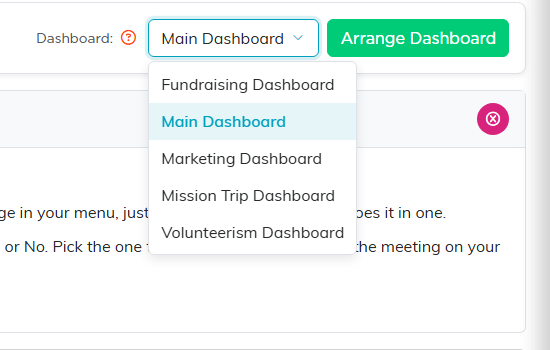
Pick Marketing Dashboard from the Dashboard list at the top of the page.

The card sits at the top of the Marketing metrics, headed with the current month.
Setting the Goal
Only a master admin can set or change the goal. Everyone else on the team sees the goal and the progress against it, but cannot edit it.
- Click Set Goal, or Edit Goal if there is already one there.
- Type the number of leads you want for the month.
- Click Save Goal.
The goal is saved against your team, so it stays put and nobody has to enter it again on the next visit. To take a goal away, edit it, clear the box and save.

Type the number and click Save Goal. Clearing the box removes the goal.
How the Progress Is Worked Out
- The number counts leads whose Active Date falls in the current calendar month, not the day the lead was created; Active Date is a field you can change on the lead.
- It always reads the calendar month, whatever date range you have picked elsewhere on the dashboard. That is deliberate: this card answers whether you are on track this month, and a rolling range cannot tell you that.
- The percentage goes above 100 when you beat the goal. The bar itself stops at full.
If No Goal Is Set
A team that has not set a goal sees nothing new on the dashboard. A master admin sees the card with a Set Goal button and a note that there is nothing to track against yet.

This is what a master admin sees before any goal is set.
