Fundraising
Run Your Auction Night From One Screen
The short answer:
Argenta now runs the live part of an auction night. You mark which items are sold from the stage, give your guests bidder numbers, and type each winning paddle and hammer price as the auctioneer calls it. At the end of the night one press bills every guest a single invoice for everything they won, charged to the card they registered with or emailed to them as a link to pay.
The part of the night nobody plans for
The auction itself is usually the easy part. Someone has lined up the items, someone else has written the descriptions, and the auctioneer knows what to do. The trouble starts about ten minutes after the last item sells, when eighty people all want to go home and every one of them has to be worked out by hand.
That is the moment the clipboard becomes the whole organisation. Somebody is reading paddle numbers off a legal pad, somebody else is matching them to names on a seating chart, and a line is forming at a folding table by the door. Two gifts get missed. One guest is charged for an item her husband won. The totals do not match the auctioneer’s notes, and the person who has to reconcile it all is doing it at eleven at night in a ballroom that is being taken apart around her.
Argenta now carries that part of the night, on the same auction record that already holds your items and your bidders.
Before the night: say which items are live
Open your auction and click the Auction Items tab. Open each item that will be sold from the stage and switch on Live Auction Item. Save it.
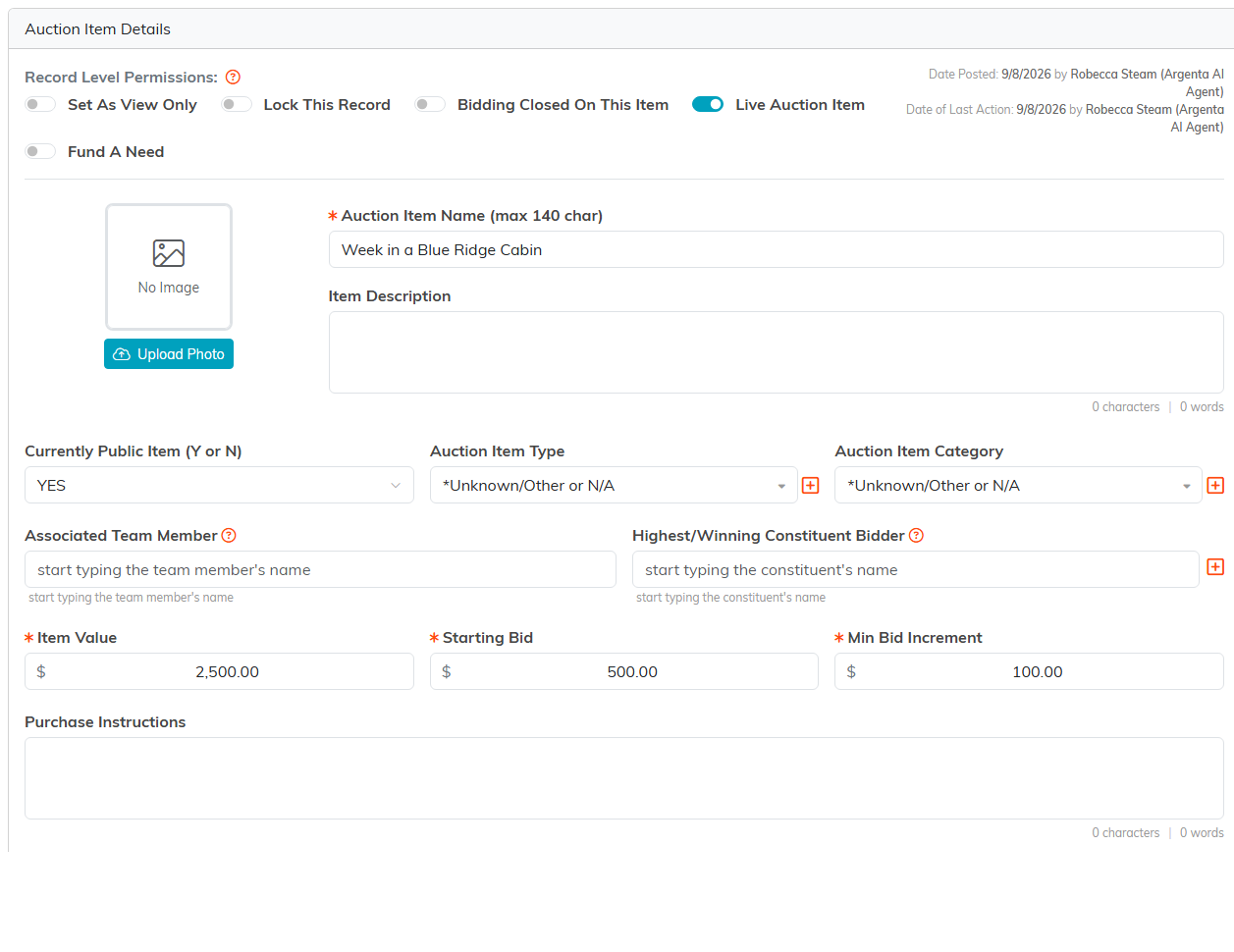
Only the items you mark this way turn up on the live screen, so your silent-auction tables and your online-only lots stay out of the way while the auctioneer is working.
Bidder numbers, and who pays how
Click the Bidders tab. Everyone who registered for the auction is listed here. Type a number in the Bidder Number box beside a guest and click the orange save button.
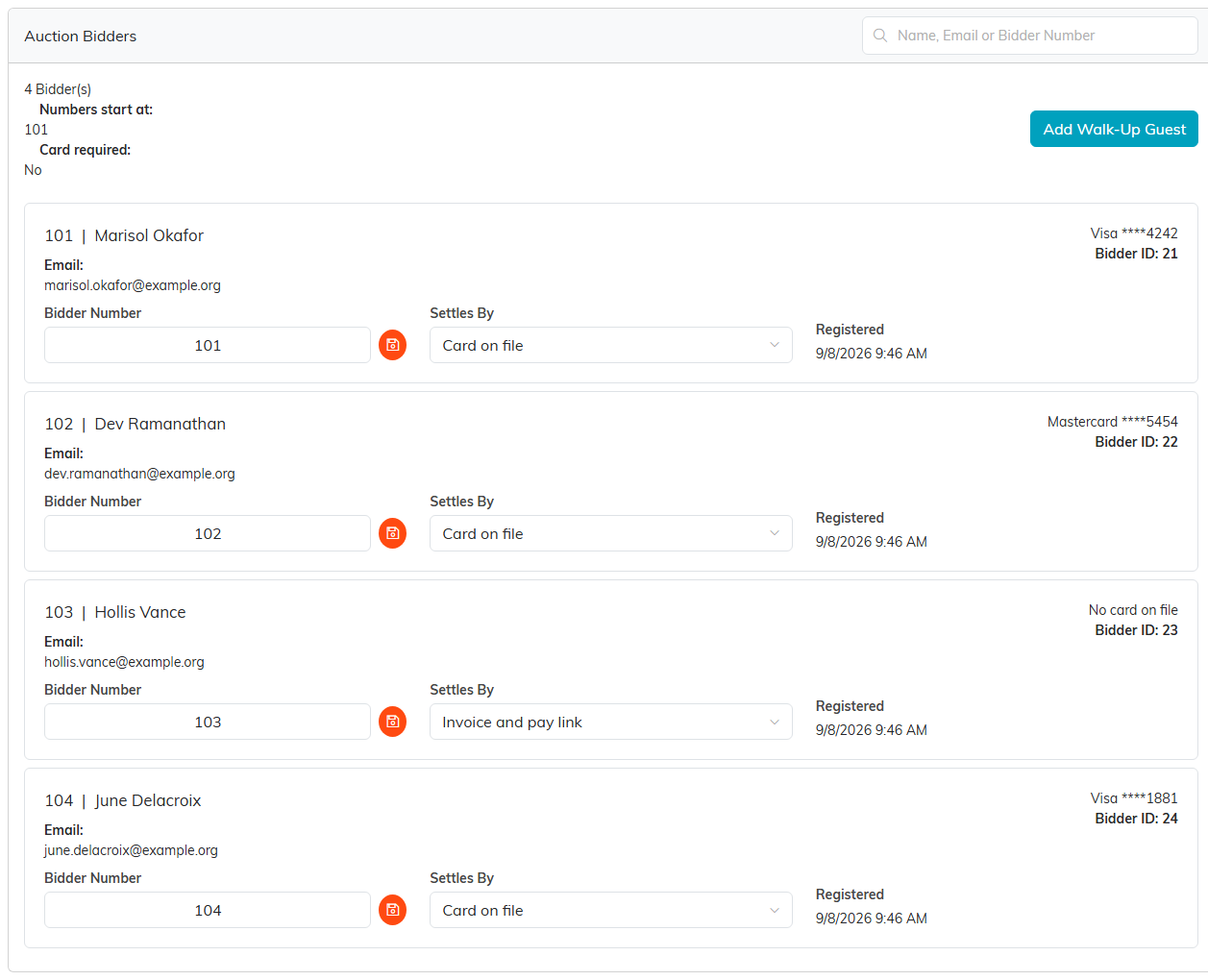
Two settings on the Auction Details tab shape this page. First Bidder Number decides where your numbering starts, so it can match the paddles you already had printed. Card Required For A Bidder Number decides whether a guest can get a number without putting a card on file first.
Turn that second one on and every guest registers themselves through your public auction form, card and all, before a number is issued. Turn it off and an Add Walk-Up Guest button appears, for the couple who bought a table at the door.
Settles By beside each guest says what happens to them at the end. Card on file charges the card they registered with. Invoice and pay link emails them instead, which is what a walk-up guest gets, because there is no card to charge.
Calling the room
Click the Live Auction tab. Choose the item in the Item box, and when it sells, type the Bidder Number, type the Amount, and press Enter.
That is the whole loop, and it is built to be typed by somebody who is watching the stage rather than the screen. If a number goes in wrong, Undo Last takes it straight back out. Further down, the Sales Recorded list holds the most recent sales with the bidder and the item on each one, and any sale that has not been billed yet can be undone from there.
A fund-a-need paddle raise works a little differently, because the same amount is called over and over. Switch on Fund A Need on the item and type your Giving Levels, separated by commas. On the live screen they become buttons.
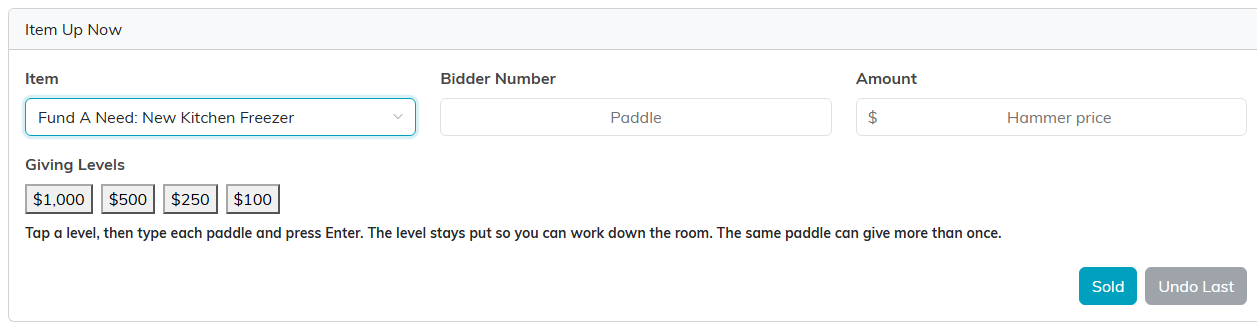
Tap a level, then type each paddle and press Enter. The level stays where it is, so you can work down the room without re-typing the amount, and the same paddle can give more than once.
The board tells you where you are
Underneath, the Settlement Board puts your guests down the side and your live items across the top.
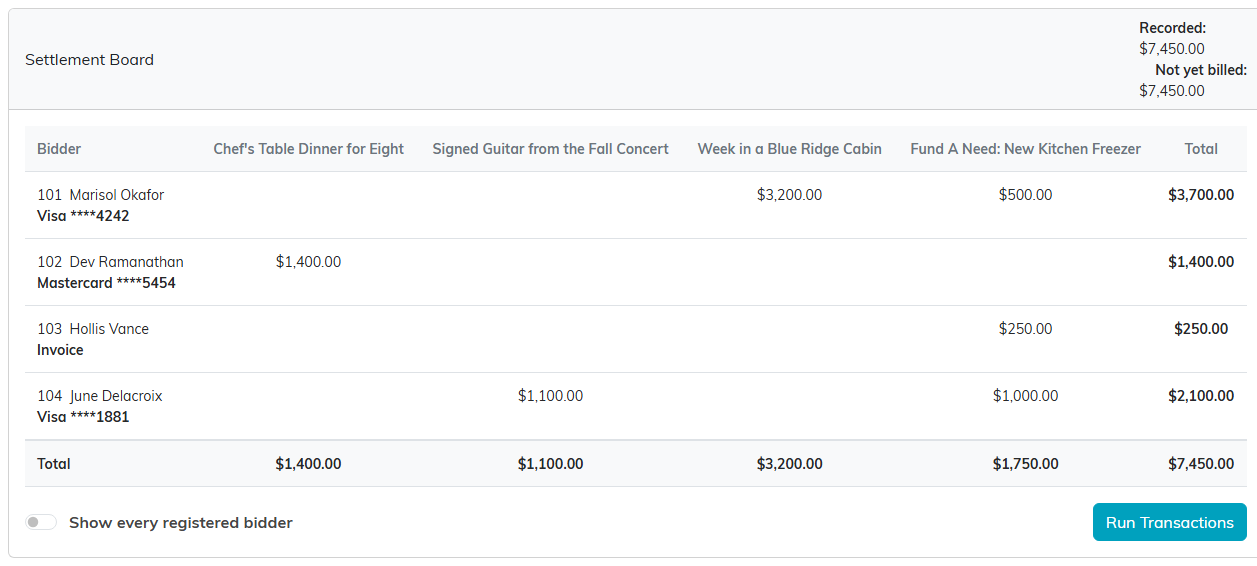
Recorded is everything the room has committed. Not yet billed is the part that still has to be collected. Watching the second number is how you know whether the night is actually finished, and the board reads the same to the board chair looking over your shoulder as it does to you.
By default it shows only the guests who bought something. Switch on Show every registered bidder when you want the full room, which is the quicker way to spot a paddle that was recorded against the wrong number.
One press at the end
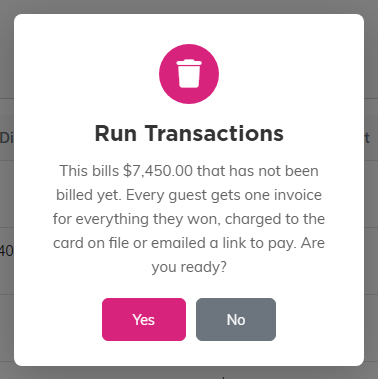
When the last item is sold, click Run Transactions. Argenta tells you how much has not been billed yet and asks whether you are ready.
Each guest gets one invoice for everything they won that night, not one per item. Argenta charges the card on file, or emails a link to pay to anyone set to invoice. When it finishes you get a count of how many were charged, how many were sent a pay link and how many were declined, with a line for each guest saying which of those happened to them.
What happens when it goes wrong
A declined card does not lose the money. That guest is emailed a link to pay instead, and their line says the card was declined and a pay link went out. The same fallback covers a card that needs the cardholder to confirm the payment, which a charge made without them present cannot do on its own.
A guest with no email address on file cannot be sent a pay link, and Argenta says so rather than quietly dropping them. Their invoice is still sitting there for you to collect in whatever way suits.
If you press Run Transactions twice, nothing is billed twice. Every sale that already reached an invoice is skipped, so a second press only picks up whatever came in after the first one. Once everything has been billed, Argenta tells you there is nothing left to settle.
Why it matters that this is not a separate tool
The invoices land on the constituent records you already have. The charges run through the same Stripe account that already takes your donations, so there is no second merchant account to open and no second set of payouts to watch. Nothing is exported or re-keyed the next morning, because there is nowhere else to key it into.
The practical version of that: the thank-you letter you send in November can name the item somebody won in October, because the two facts live on the same record.
Common questions
Do guests have to register online before the event?
No. If Card Required For A Bidder Number is switched off, you can add a walk-up guest from the Bidders page and give them a number on the spot. They settle by invoice and pay link, because there is no card on file to charge.
Can two people share one bidder number?
A bidder number belongs to one registered guest, so a couple sharing a paddle are one bidder and get one invoice for the night.
What if the auctioneer sells an item that was never entered?
Add the item on the Auction Items tab with Live Auction Item switched on, and it appears in the Item box on the live screen. You are only away from the live page for as long as it takes to save the item.
Can somebody watch the totals without being able to change anything?
Yes. A user with view-only rights on the auction sees the settlement board and the recorded sales, but the Sold, Undo and Run Transactions buttons are not there for them.
Does a fund-a-need gift show up on the guest’s record?
It is recorded as a sale against the fund-a-need item and billed on the same invoice as everything else that guest won, so it reaches their record with the rest of the night.
What if I record a sale against the wrong paddle?
Undo it. Undo Last removes the sale you just entered, and any sale in the Sales Recorded list can be undone as long as it has not been billed yet. After Run Transactions it is on an invoice, and an invoice is corrected as an invoice.
Start here
If you are running an auction this season and the checkout line is the part you dread, the Bidders and Live Auction pages are already on every auction record in your Argenta account.
If you are still working out how the pieces of your operation fit together, our guide to nonprofit operations is the place to start, and it is free.
Argenta now runs the live part of an auction night. You mark which items are sold from the stage, give your guests bidder numbers, and type each winning paddle and hammer price as the auctioneer calls it. At the end of the night one press bills every guest a single invoice for everything they won, charged to the card they registered with or emailed to them as a link to pay.
The part of the night nobody plans for
The auction itself is usually the easy part. Someone has lined up the items, someone else has written the descriptions, and the auctioneer knows what to do. The trouble starts about ten minutes after the last item sells, when eighty people all want to go home and every one of them has to be worked out by hand.
That is the moment the clipboard becomes the whole organisation. Somebody is reading paddle numbers off a legal pad, somebody else is matching them to names on a seating chart, and a line is forming at a folding table by the door. Two gifts get missed. One guest is charged for an item her husband won. The totals do not match the auctioneer’s notes, and the person who has to reconcile it all is doing it at eleven at night in a ballroom that is being taken apart around her.
Argenta now carries that part of the night, on the same auction record that already holds your items and your bidders.
Before the night: say which items are live
Open your auction and click the Auction Items tab. Open each item that will be sold from the stage and switch on Live Auction Item. Save it.
Only the items you mark this way turn up on the live screen, so your silent-auction tables and your online-only lots stay out of the way while the auctioneer is working.
Bidder numbers, and who pays how
Click the Bidders tab. Everyone who registered for the auction is listed here. Type a number in the Bidder Number box beside a guest and click the orange save button.
Two settings on the Auction Details tab shape this page. First Bidder Number decides where your numbering starts, so it can match the paddles you already had printed. Card Required For A Bidder Number decides whether a guest can get a number without putting a card on file first.
Turn that second one on and every guest registers themselves through your public auction form, card and all, before a number is issued. Turn it off and an Add Walk-Up Guest button appears, for the couple who bought a table at the door.
Settles By beside each guest says what happens to them at the end. Card on file charges the card they registered with. Invoice and pay link emails them instead, which is what a walk-up guest gets, because there is no card to charge.
Calling the room
Click the Live Auction tab. Choose the item in the Item box, and when it sells, type the Bidder Number, type the Amount, and press Enter.
That is the whole loop, and it is built to be typed by somebody who is watching the stage rather than the screen. If a number goes in wrong, Undo Last takes it straight back out. Further down, the Sales Recorded list holds the most recent sales with the bidder and the item on each one, and any sale that has not been billed yet can be undone from there.
A fund-a-need paddle raise works a little differently, because the same amount is called over and over. Switch on Fund A Need on the item and type your Giving Levels, separated by commas. On the live screen they become buttons.
Tap a level, then type each paddle and press Enter. The level stays where it is, so you can work down the room without re-typing the amount, and the same paddle can give more than once.
The board tells you where you are
Underneath, the Settlement Board puts your guests down the side and your live items across the top.
Recorded is everything the room has committed. Not yet billed is the part that still has to be collected. Watching the second number is how you know whether the night is actually finished, and the board reads the same to the board chair looking over your shoulder as it does to you.
By default it shows only the guests who bought something. Switch on Show every registered bidder when you want the full room, which is the quicker way to spot a paddle that was recorded against the wrong number.
One press at the end
When the last item is sold, click Run Transactions. Argenta tells you how much has not been billed yet and asks whether you are ready.
Each guest gets one invoice for everything they won that night, not one per item. Argenta charges the card on file, or emails a link to pay to anyone set to invoice. When it finishes you get a count of how many were charged, how many were sent a pay link and how many were declined, with a line for each guest saying which of those happened to them.
What happens when it goes wrong
A declined card does not lose the money. That guest is emailed a link to pay instead, and their line says the card was declined and a pay link went out. The same fallback covers a card that needs the cardholder to confirm the payment, which a charge made without them present cannot do on its own.
A guest with no email address on file cannot be sent a pay link, and Argenta says so rather than quietly dropping them. Their invoice is still sitting there for you to collect in whatever way suits.
If you press Run Transactions twice, nothing is billed twice. Every sale that already reached an invoice is skipped, so a second press only picks up whatever came in after the first one. Once everything has been billed, Argenta tells you there is nothing left to settle.
Why it matters that this is not a separate tool
The invoices land on the constituent records you already have. The charges run through the same Stripe account that already takes your donations, so there is no second merchant account to open and no second set of payouts to watch. Nothing is exported or re-keyed the next morning, because there is nowhere else to key it into.
The practical version of that: the thank-you letter you send in November can name the item somebody won in October, because the two facts live on the same record.
Common questions
Do guests have to register online before the event?
No. If Card Required For A Bidder Number is switched off, you can add a walk-up guest from the Bidders page and give them a number on the spot. They settle by invoice and pay link, because there is no card on file to charge.
Can two people share one bidder number?
A bidder number belongs to one registered guest, so a couple sharing a paddle are one bidder and get one invoice for the night.
What if the auctioneer sells an item that was never entered?
Add the item on the Auction Items tab with Live Auction Item switched on, and it appears in the Item box on the live screen. You are only away from the live page for as long as it takes to save the item.
Can somebody watch the totals without being able to change anything?
Yes. A user with view-only rights on the auction sees the settlement board and the recorded sales, but the Sold, Undo and Run Transactions buttons are not there for them.
Does a fund-a-need gift show up on the guest’s record?
It is recorded as a sale against the fund-a-need item and billed on the same invoice as everything else that guest won, so it reaches their record with the rest of the night.
What if I record a sale against the wrong paddle?
Undo it. Undo Last removes the sale you just entered, and any sale in the Sales Recorded list can be undone as long as it has not been billed yet. After Run Transactions it is on an invoice, and an invoice is corrected as an invoice.
Start here
If you are running an auction this season and the checkout line is the part you dread, the Bidders and Live Auction pages are already on every auction record in your Argenta account.
If you are still working out how the pieces of your operation fit together, our guide to nonprofit operations is the place to start, and it is free.
